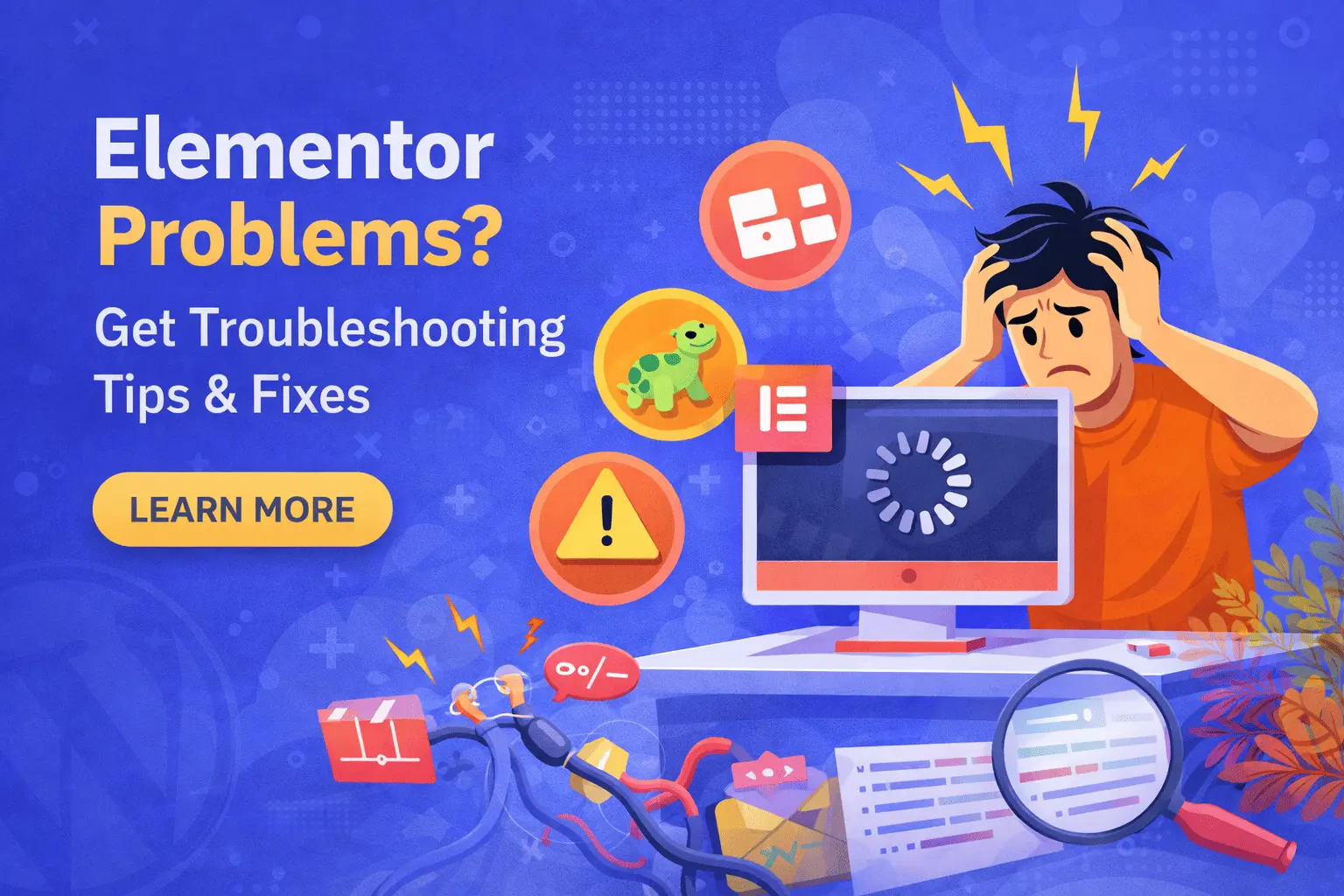
Common Elementor Problems (And How to Fix Them Easily)
Elementor is one of the most popular WordPress page builders. It allows users to design professional websites without coding. However, like any powerful tool, Elementor can sometimes create technical issues if not properly configured.
Many website owners face problems like slow loading, layout breaking, or editor not loading — especially when using multiple plugins or heavy themes.
In this guide, we will discuss the most common Elementor problems and how to fix them step by step.
1. Elementor Editor Not Loading
Problem:
When you click “Edit with Elementor,” the page keeps loading or gets stuck on the loading screen.
Why It Happens:
Low PHP memory limit
Plugin conflict
Outdated Elementor version
JavaScript error
Hosting limitations
How to Fix It:
Increase PHP memory limit to at least 256MB
Deactivate other plugins temporarily
Update Elementor and Elementor Pro
Clear cache (plugin + browser)
Switch to a lightweight theme temporarily for testing
2. Slow Website After Installing Elementor
Problem:
Website becomes slow after building pages with Elementor.
Why It Happens:
Too many widgets
Heavy animations
Large background images
No caching
Poor hosting
How to Fix It:
Reduce unnecessary sections and widgets
Avoid excessive animations
Optimize images (WebP format recommended)
Use a caching plugin
Enable CSS print method in Elementor settings
Upgrade hosting if needed
Elementor is not slow by default — poor optimization makes it slow.
3. Layout Breaking on Mobile
Problem:
Page looks perfect on desktop but broken on mobile.
Why It Happens:
Fixed width elements
Improper margin/padding
Large font sizes
Background images not optimized
How to Fix It:
Use responsive controls in Elementor
Adjust padding and margin for mobile separately
Hide unnecessary sections on mobile
Test on real devices
Always design with mobile-first approach.
4. Elementor Widgets Not Working
Problem:
Buttons, forms, or sliders stop working.
Why It Happens:
JavaScript conflict
Plugin compatibility issue
Outdated Elementor version
How to Fix It:
Update all plugins
Check browser console for errors
Disable recently installed plugins
Regenerate CSS & Data (Elementor → Tools)
5. Elementor Not Saving Changes
Problem:
After editing, changes are not saving.
Why It Happens:
Server timeout
Low PHP limits
Security plugin blocking request
ModSecurity rules
How to Fix It:
Increase max execution time
Increase post max size
Contact hosting provider
Disable security plugin temporarily
6. Header & Footer Not Showing Correctly
Problem:
Custom header/footer disappears or layout breaks.
Why It Happens:
Theme conflict
Incorrect display conditions
Cache issue
How to Fix It:
Check display conditions in Theme Builder
Clear cache
Use compatible theme (Hello Theme recommended)
7. White Space Issue in Elementor
Problem:
Unwanted white space appears between sections.
Why It Happens:
Extra padding or margin
Section height settings
Empty widgets
How to Fix It:
Check section advanced settings
Reduce margin/padding
Delete empty columns
Inspect using Navigator tool
8. Elementor Form Not Sending Emails
Problem:
Contact form submits but email not received.
Why It Happens:
No SMTP configured
Hosting email limitations
Wrong email setup
How to Fix It:
Configure SMTP
Check spam folder
Verify email address
Use reliable mail service
9. Elementor Pro License Issues
Problem:
Pro features stop working or show license error.
Why It Happens:
License expired
Domain mismatch
Not activated properly
How to Fix It:
Reactivate license
Check domain connection
Renew subscription if expired
10. Elementor Update Breaking Website
Problem:
After update, layout breaks or design changes.
Why It Happens:
Incompatible theme
Plugin conflict
Major update changes
How to Fix It:
Always take backup before updating
Use staging site
Roll back to previous version if needed
How to Prevent Elementor Problems
Follow these best practices:
Use lightweight theme (Hello / Astra)
Limit third-party addons
Optimize images
Use quality hosting
Keep everything updated
Take regular backups
Test updates on staging site
Final Thoughts
Elementor is a powerful page builder — but performance and stability depend on how you use it.
If your Elementor website is:
Slow
Not saving changes
Breaking on mobile
Not sending emails
Showing editor errors
Then proper optimization and technical setup is required.
With the right configuration, Elementor can build fast, responsive, and SEO-friendly websites.