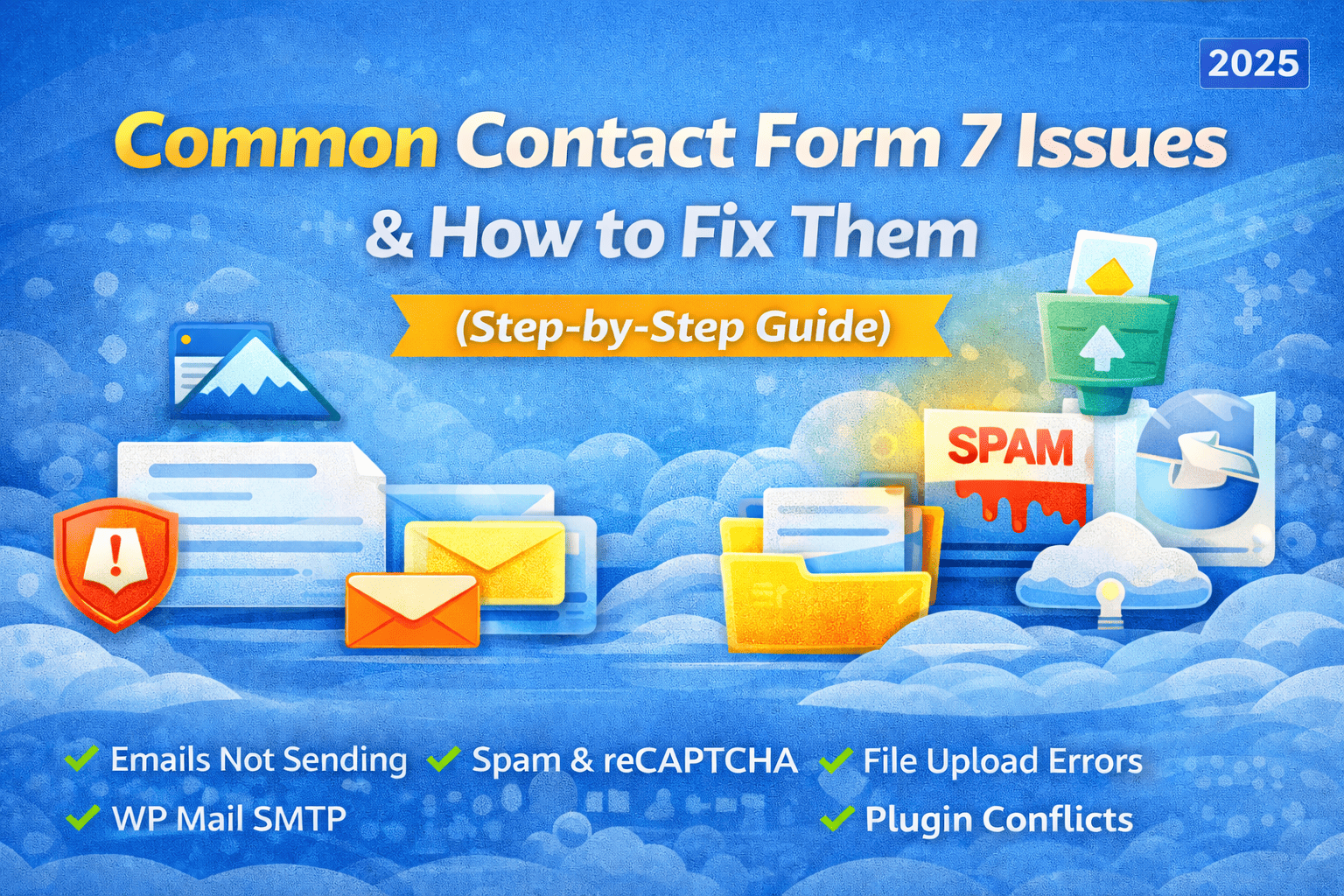
Most Contact Form 7 problems are caused by email configuration, SMTP setup, reCAPTCHA errors, or plugin conflicts.
Contact Form 7 is one of the most widely used free WordPress form plugins. It’s lightweight, flexible, and easy to use. However, many website owners face issues like emails not sending, spam submissions, red error messages, or file upload problems.
In this complete guide, we’ll cover every common Contact Form 7 issue and explain how to fix them step-by-step.
Contact Form 7 Not Sending Emails
Problem:
Form submits successfully
You see “Message Sent Successfully”
But no email is received
Main Reasons:
Hosting blocks PHP mail
Wrong “From” email address
No SMTP configured
SPF/DKIM not set
Step-by-Step Solution
Step 1: Install SMTP Plugin
Install WP Mail SMTP plugin.
Step 2: Configure SMTP
Go to:
WP Admin → WP Mail SMTP → Settings
Use:
Gmail SMTP
Zoho SMTP
Hosting SMTP
Fill:
SMTP Host
Port (587 recommended)
Encryption (TLS)
Authentication: Yes
Step 3: Fix Mail Tab in Contact Form 7
Go to:
Contact → Edit Form → Mail Tab
⚠ Important:
“From” field must use domain email
Example: info@yourdomain.comDo NOT use Gmail here
Example configuration:
From: Your Website info@yourdomain.com
To: yourbusiness@email.com
Step 4: Add SPF & DKIM Records
Go to your hosting → DNS → Add:
SPF record
DKIM record
DMARC (optional but recommended)
This improves email deliverability.
Emails Going to Spam Folder
Problem:
Emails are received but land in spam.
Reasons:
No email authentication
Using free Gmail in From field
Server IP reputation issue
Solution:
✔ Use domain-based email
✔ Configure SMTP properly
✔ Add SPF, DKIM, DMARC
✔ Avoid spam words in email content
Red Border Error (There Was an Error Sending Message)
❌ Problem:
Form shows red border and error message.
🎯 Reasons:
reCAPTCHA not configured properly
JavaScript conflict
Caching issue
Firewall blocking request
✅ Fix It Like This:
Step 1: Reconfigure reCAPTCHA
Go to:
Contact → Integration → reCAPTCHA
Re-enter:
Site Key
Secret Key
Make sure you are using correct version (v2 or v3).
Step 2: Clear Cache
If using:
LiteSpeed
WP Rocket
W3 Total Cache
Clear all cache.
Step 3: Disable JS Optimization
Temporarily disable:
JS Minify
Combine JS
Test again.
Too Many Spam Submissions
Problem:
Receiving fake bot messages daily.
Reasons:
No spam protection
Public email visible
Advanced Anti-Spam Setup
✔ Enable reCAPTCHA v2 (Checkbox recommended)
✔ Install Honeypot plugin
✔ Use Akismet
✔ Use Cloudflare Turnstile
✔ Block suspicious countries via firewall
This reduces 95% spam.
File Upload Not Working
❌ Problem:
File upload field gives error.
🎯 Reasons:
Server upload limit too low
Wrong file format
Permission issue
✅ Fix:
Increase Upload Limit
In hosting → PHP Settings → Increase:
upload_max_filesize
post_max_size
Set minimum 10MB.
Check File Tag in Form
Example:
[file your-file limit:10mb filetypes:pdf|jpg|png]
Make sure filetypes are allowed.
Form Not Working After Plugin Update
Problem:
Form stops working suddenly.
Reasons:
Plugin conflict
Theme conflict
Outdated PHP version
Troubleshooting Method
Update WordPress
Update all plugins
Switch to default theme (Twenty Twenty-Four)
Disable other plugins one by one
Check PHP version (7.4+ recommended)
AJAX Not Working
Problem:
Page reloads after submit instead of AJAX success message.
Reasons:
JavaScript error
Theme conflict
Fix:
Inspect browser console (F12 → Console)
Check for JS errors
Disable conflicting plugins
Contact Form 7 Slow Loading
Problem:
Form loads slowly.
Reasons:
Heavy theme
Too many plugins
No caching
Fix:
✔ Use caching plugin
✔ Optimize images
✔ Use lightweight theme
✔ Use quality hosting
Professional Launch Checklist
Before delivering to client:
✔ Install SMTP
✔ Test email delivery
✔ Test on mobile
✔ Enable reCAPTCHA
✔ Check spam folder
✔ Use domain email
✔ Test in incognito mode
Final Thoughts
Contact Form 7 is powerful but requires proper configuration. Most issues are caused by:
Email misconfiguration
Missing SMTP
No spam protection
Plugin conflicts
Once properly configured, it works reliably and securely.