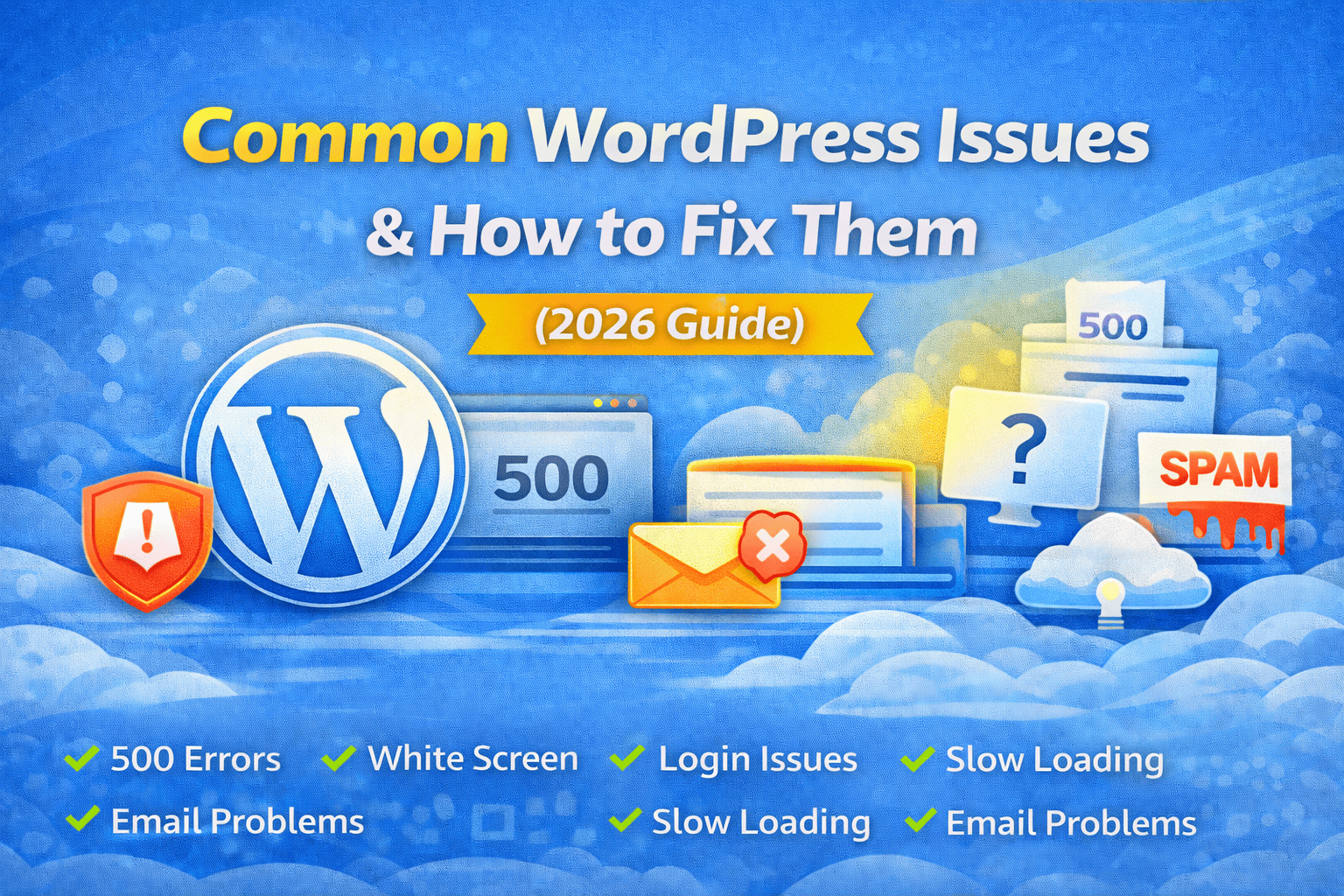
Most WordPress problems are caused by plugin conflicts, theme issues, server settings, or incorrect configuration.
WordPress powers more than 40% of websites worldwide. While it is powerful and flexible, users often face common technical issues. The good news? Most WordPress problems are easy to fix if you know the right steps.
In this guide, we’ll cover the most common WordPress issues and their complete solutions.
White Screen of Death (WSOD)
Problem:
Your website shows a completely blank white screen.
Causes:
Plugin conflict
Theme issue
PHP memory limit exceeded
Solution:
✔ Disable all plugins via File Manager or FTP
✔ Switch to default theme (Twenty Twenty-Four)
✔ Increase PHP memory limit in wp-config.php:
define('WP_MEMORY_LIMIT', '256M');500 Internal Server Error
Problem:
Website shows “500 Internal Server Error”.
Causes:
Corrupted .htaccess file
Plugin conflict
PHP limit exceeded
Fix:
✔ Rename .htaccess file and regenerate
✔ Disable plugins
✔ Increase PHP limits
WordPress Not Sending Emails
❌ Problem:
Contact forms not sending emails.
🎯 Causes:
PHP mail blocked
No SMTP configured
✅ Solution:
✔ Install WP Mail SMTP
✔ Configure Gmail or Hosting SMTP
✔ Add SPF & DKIM records
Website Slow Loading
Problem:
Site takes 4–6 seconds to load.
Causes:
Heavy theme
Too many plugins
No caching
Cheap hosting
Fix:
✔ Install LiteSpeed Cache / WP Rocket
✔ Optimize images
✔ Use CDN
✔ Upgrade hosting
WordPress Login Page Redirect Loop
Problem:
Cannot login, keeps refreshing.
Causes:
Corrupt cookies
Plugin conflict
Wrong site URL
Solution:
✔ Clear browser cache
✔ Disable plugins
✔ Check WordPress URL in Settings
404 Error on Posts
Problem:
Posts show 404 error.
Cause:
Permalink structure broken.
Fix:
Go to:
Settings → Permalinks → Click Save Changes
This refreshes rewrite rules.
Stuck in Maintenance Mode
Problem:
“Briefly unavailable for scheduled maintenance.”
Cause:
Update interrupted.
Fix:
Delete .maintenance file from root folder.
Images Not Uploading
Problem:
Image upload fails.
Causes:
File permission issue
Low upload limit
Fix:
✔ Set folder permission to 755
✔ Increase upload_max_filesize
Too Many Spam Comments
Problem:
Receiving spam comments daily.
Solution:
✔ Install Akismet
✔ Enable reCAPTCHA
✔ Disable comments if unnecessary
Plugin or Theme Update Breaks Website
Problem:
Website layout broken after update.
Cause:
Compatibility issue.
Fix:
✔ Roll back plugin version
✔ Use staging site before update
✔ Check PHP version compatibility
Professional WordPress Maintenance Checklist
Before delivering to client:
✔ Install security plugin
✔ Install backup plugin
✔ Configure SMTP
✔ Enable caching
✔ Optimize images
✔ Enable firewall
✔ Test mobile responsiveness
Final Thoughts
WordPress is powerful but requires proper setup and maintenance. Most problems are caused by:
Plugin conflicts
Poor hosting
Incorrect configuration
Lack of optimization
With proper management, WordPress runs smoothly and securely.